Hello Dear Readers!
In this post, I seek to furnish you with study material based on the NCERT Book on Unit 3 ICT Skills -II. It is widely known that Employability Skills are a requirement for every Skill Education course. I sincerely hope that this study material will assist you in your exam preparation and help you secure good grades in the examination.
Let us comprehend what topics you should study for Unit 3 ICT Skills II.
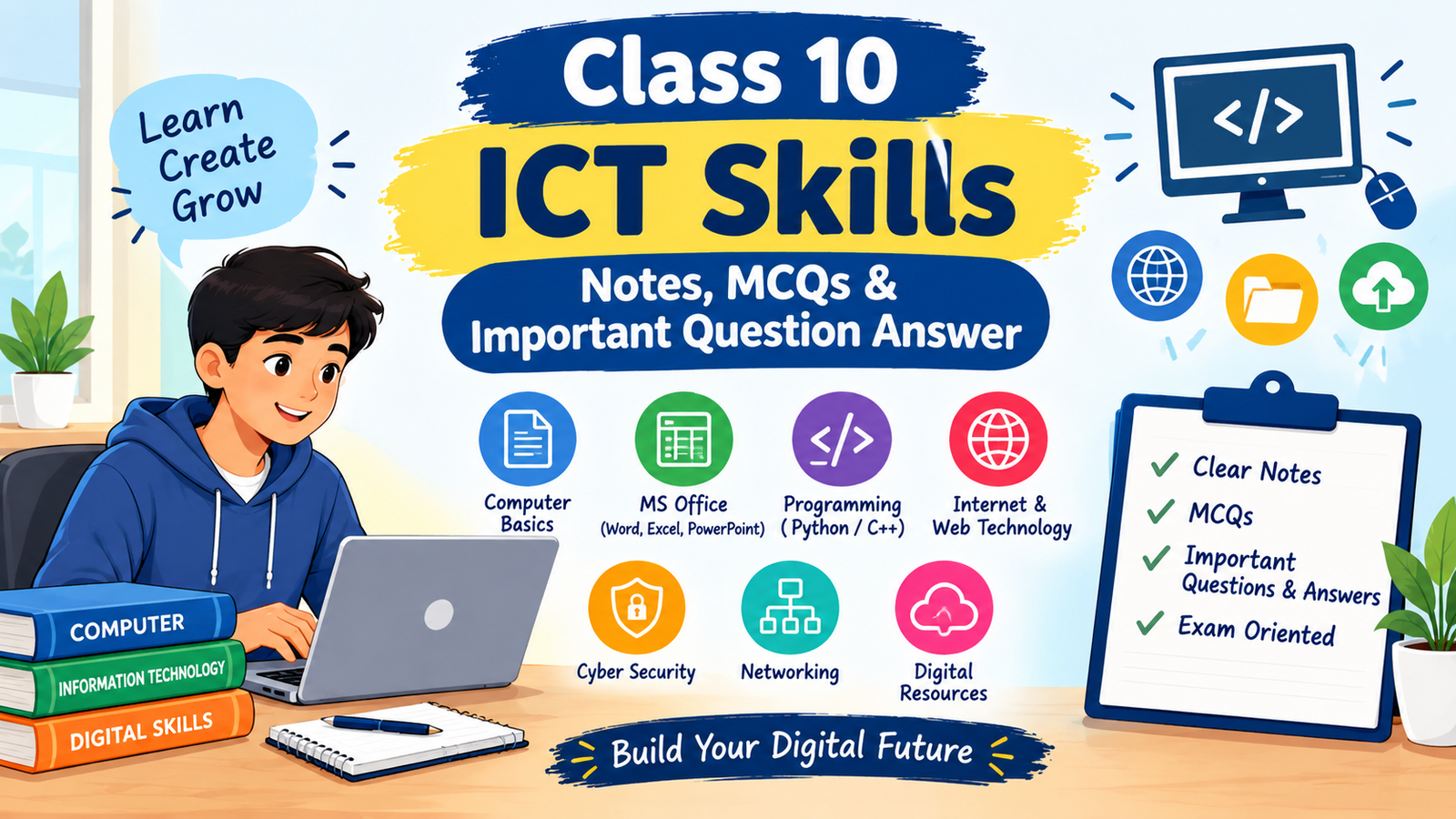
Class 10 Employability Skills Unit 3 ICT Skills Notes, MCQs & Question Answer
Session 1: Basic Computer Operations
What is ICT ?
ICT stands for Information and Communication Technology. ICT refers to all the methods, tools, concepts related to storing, recording and sending digital information.
ICT devices are tablets, smartphones and laptops.
ICT Skills:
ICT skills help us to communicate, run our business and stay connected with our family and friends.
Computer Hardware and Software
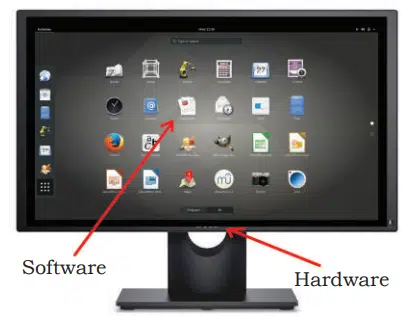
A computer system consists of two main parts — the hardware and the software. The physical parts that we can see, and touch are called hardware. Another important part is known as software which we can see but we cannot touch.
What is an Operating System?
The most important software in any computer is the Operating System (OS). When we start computer the first software display on the desktop is operating system. Some of the most commonly used operating systems for laptops and desktop are Ubuntu, Microsoft Windows and Mac OS.
How to start and shut down the computer?
To start a computer, click on Power button on the CPU. This will start the operating system of your computer and display main screen of the monitor.
a. Basic Functions performed when a computer starts
When you start a computer, automatically computer will run a basic program called BIOS (Basic Input/Output System). The BIOS first does a self-test. If the self-test shows that the system is fine, the BIOS will load the Operating System.
b. Login and Logout
Login and Logout is used to protect your computer from unauthorised person. To make sure your computer is locked, you have login-IDs and passwords.
c. Shutting Down a computer
When you click Shut down button, the Operating System will safely close all the applications and turn off the computer.
Using the Keyboard
A keyboard is an input device used to type text, numbers and commands into the computer.
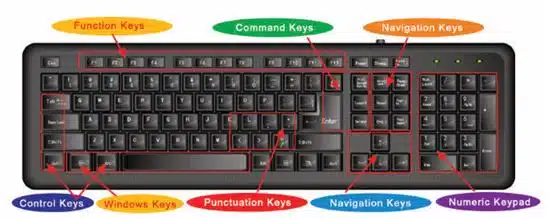
Some of the important keys of Keyboard are –
- Function Keys – Keys from F1 to F12 are known as function keys which perform specific functions.
- Control keys – Keys, such as Control (CTRL), SHIFT, SPACEBAR, ALT, CAPS LOCK and TAB, are special control keys that perform special functions.
- Enter key – The key can be either ENTER or RETURN, you use the ENTER or the RETURN key to move the cursor to the beginning of a new line.
- Punctuation keys – Punctuation keys include keys for punctuation marks, such as colon (:), semicolon (;), question mark (?), single quotation marks (‘ ’), and double quotation marks (“ ”).
- Navigation keys – Keys, such as the arrow keys, HOME, END, PAGE UP, and PAGE DOWN are navigation keys. These are used to move up and down, right and left in a document. The HOME and END keys move the cursor to the left/right end of a line of text, respectively.
- Command keys – Keys, such as INSERT (INS), DELETE (DEL), and BACKSPACE are command keys. When the INSERT key is turned ON, it helps you overwrite characters to the right of the cursor. The DELETE key and the BACKSPACE key are used to remove typed text.
- Windows key – Pressing this key opens the Start menu.
Using a Mouse
The mouse is a small device that you can use to move, select and open items on your computer screen.
The functions that can be performed using a mouse.
- Roll Over or Hover
- Point and Click
- Drag and Drop
- Double-click
Roll Over or Hover:
Some actions can be done by simply rolling over or hovering over an item. When you bring the mouse over a file in File Explorer, it will show the details of that file.
Point and Click:
As you move the mouse on your desk, a pointer moves correspondingly on your screen. The mouse allows you to select an item on the screen. When you click a particular file, it gets selected.
Drag and Drop:
To move an item, you need to click it, and then holding the mouse button down, move the item to a new location. After you move the item to the new location, you release the mouse button. This is called drag and drop. When you drag a file in File Explorer, you can pick it up from the present location and drop it in a new location where you release the mouse.
Double-click:
Double-clicking means to quickly click the left mouse button twice. When we double click on a file, it will open the file.
Session 2: Performing Basic File Operations
Basic File Operations
- In any school (or office), each teacher has a separate cabinet, where they keep the files of different students or classes on separate shelves.
- Similarly, information on a computer is stored in electronic files, which can be put into separate folders.
- It is easier to manage the electronic files as they can be simply copied, moved, renamed or even deleted.
Files and Folders
Files
In computers, information is stored in files, every file having a file name and extension. Different types of files store different types of information.
The file name and file name extension are separated by a period or a ‘dot’.
For example, if you store information in Notepad and the file name is school then the notepad extension will be .txt and it will look like “school.txt”.
File extensions identify the format and type of data stored inside a computer file. [1]
Common file types and their typical extensions include:
Documents and Spreadsheets
- .docx: Microsoft Word document
- .xlsx / .xls: Microsoft Excel spreadsheet
- .pptx / .ppt: Microsoft PowerPoint presentation
- .pdf: Portable Document Format (maintains fixed layout)
- .txt: Plain text file
Images and Graphics
- .jpg / .jpeg: Joint Photographic Experts Group image (uses lossy compression)
- .png: Portable Network Graphics (supports lossless compression and transparency)
- .gif: Graphics Interchange Format (supports simple animations)
Audio and Video
- .mp3: MPEG-1 Audio Layer III (standard compressed audio format)
- .wav: Waveform Audio File Format (uncompressed audio)
- .mp4: MPEG-4 video format (balances quality and size)
- .avi: Audio Video Interleave video file
System and Archives
- .exe: Windows executable application file
- .zip: Compressed archive folder
Folder
A folder is a location where a group of files and sub-folders can be stored. A sub-folder is a folder inside another folder.
Creating a File (Using a Text Editor in Ubuntu/Windos)
Steps to create a new file using a text editor in Ubuntu / Windows.
- To open a text editor, type ‘editor’ in the search dialog box. Then double-click the text editor option. This will open a blank document. In Windows, you can open Notepad and type in the text.
- Here you can add text, such as ‘Neha Tiwari Shakti Nagar, New Delhi, 7856453451’
- To save the file, click Save. In the Save As dialog box, browse to the Desktop folder, type the name as ‘Neha’ and click Save.
Creating a Folder (in Ubuntu/Windows)
A folder is a location where a group of files can be stored. You can create a folder where all the files for all the students can be stored.
Steps to create a new folder in Ubuntu/Windows.
- Open the file explorer (Windows/Ubuntu). To open file explorer in Ubuntu, click Files option on the left. File explorer opens up.
- To create a folder:
- (a) Choose a location where the folder has to be created for example ‘Desktop’.
- (b) Right-click and then choose the ‘New Folder’.
- (c) Type the name of the folder as ‘Demo’.
Most Commonly Used Shortcut commands are:
- CTRL+Z — UNDO
- CTRL+Y — REDO
- CTRL+A — SELECT ALL
- CTRL+X — CUT
- CTRL+C — COPY
- CTRL+V — PASTE
- CTRL+P — PRINT
- CTRL+S — SAVE
Session 3: Computer Care and Maintenance
Importance of Care and Maintenance of Computers
Taking care of electronic devices, such as computers and mobiles, helps them to work properly.
A computer is a delicate machine with a lot of moving electronic parts. We need to protect it from dust and damage. If we are careless, it will not work efficiently.
Computers and mobiles are very expensive. When we take good care of computers on a regular basis, we can use them for a longer time. This will help us save money as we do not need to buy new devices too often.
Basic Tips for Taking Care of Devices
Simple ways to take care of your computer are –
Keeping a Device Clean
- Keyboard: You can clean a keyboard with a soft brush and remove crumbs and dust particles.
- Screen: You can wipe the screen with a soft cloth to remove any finger marks.
- Be careful with food and drinks: Avoid eating and keeping glasses of water or cups of coffee near a computer. Any liquid spilt over an electronic device can spoil it beyond repair.
- Handle devices carefully: Handle and move your laptop carefully and avoid dropping or banging it against a hard surface. Using a cover for your mobile and a padded case for moving your laptop protects the device from damage.
- Keep the computer Cool: If a computer, laptop or mobile device gets overheated, the internal parts can be damaged.
The CPU has an internal fan to keep it cool. We should make sure the fan is functioning. Avoid leaving a device in the sun or in a closed car.
We should be careful when using a laptop while sitting in bed and make sure that the fan is not covered. - Do not overcharge your battery: If we leave the device plugged in for a long time, it can overheat the battery. This reduces the battery life. Always unplug the device once it is charged 100%.
- Always plug in devices carefully: Any device being connected to a laptop or computer such as a USB drive or headphones, should be done gently. It should not be forced into the port. I
- Do not run too many programs at a time: When too many programs are running at the same time, the computer can become slow and even crash.
If a program/app is not being used, it should be closed so that other programs can work smoothly.
Prepare a Maintenance Schedule
We need to prepare a plan or a schedule for maintenance to keep the computer running in perfect condition for a long time.
(a) Daily Maintenance
- Clean up your e-mail inbox
- Download e-mail attachments and save in proper folders
(b) Weekly Maintenance
- Clean your keyboard
- Clean your monitor
- Dust CPU and printer
- Backup your data to an external drive
(c) Monthly Maintenance
- Transfer photographs to computer and delete from drive
- Organise photos into folders or albums
- Clean up ‘Download’ folder
- Uninstall unused programs and apps
- Run disk-cleaner software
- Run full system virus scan
(d) Yearly/Annual Maintenance
- Clean up contacts list on social media accounts
- Clean up e-mail contact list
- Update your operating system
- Check for expiry of anti-virus software and renew
Back up your data
Backup means saving the data present on your computer on another device, such as CD/DVD drives or hard disk.
Data can be recovered from here in case the computer stops working completely. Computers can crash, humans can make mistakes, and natural disasters, such as floods, can happen.
Scanning and Cleaning Viruses
Computer viruses can affect the computer system performance and data; to protect the computer we can install anti-virus software. This will prevent any viruses from entering and will also clean any viruses that may enter our system before they affect the data.
Increasing Computer Performance
When we are using computer for a long time then lot of unnecessary files and data stored in computer automatically, this unnecessary file is called temporary files which decrease the performance of computer.
Try to keep clean this type of temporary files using disk cleaner software or deleting temporary file directly from the “temporary folder”.
Removing SPAM from your Computer
SPAM: Unwanted emails received from companies who are advertising a product or trying to attract you to their website, are called SPAM.
We should never respond to SPAM and delete it on a regular basis.
It is possible to set filters in the settings to prevent SPAM from entering our mail box. Most e-mail software have a SPAM folder and automatically put all such emails into this folder.
Session 4: Computer Security and Privacy
We store a lot of information on our computers and electronic devices.
For example,
- We keep our photos on our mobiles,
- School computers store personal information regarding every student and their parents,
- Computers used in banks store the financial information of their clients and
- Computers in hospitals have important information about patients.
If any of this information gets lost or leaked and falls into the wrong hands, it can cause a lot of harm to the people. Hence, it is essential to keep computers secure and our data safe.
Computer Security Deals with Protecting Computers
Computer security and privacy deals with the measures used to prevent loss of data.
Reasons for Security Break
Security break is leakage of information stored in a computer.
Personal information can be lost or leaked in two ways:
- We are not careful in giving out personal information over the Internet. For example, we share our account details and password on unsecure sites.
- A person gets unauthorized access to our computer. This can happen in the office if we leave the computer without logging out.
Computer security and privacy is about measures we can take to restrict access to personal data stored in a computer.
Threats to Computer
Threats are the ways in which personal information can be leaked from a computer without our knowing.
(a) Theft – Theft means stealing of information or hardware. These may be of three types:
- Physical – Where a person may steal your desktop computer or laptop.
- Identity – Where a hacker steals your personal information and assumes your identity. Using this false identity, the hacker can gain access to your account information or perform illegal activity.
- Software Piracy – This is stealing of software and includes using or distributing unlicensed and unauthorised copies of a computer program or software.
(b) Virus – Viruses are computer programs that can damage the data and software programs or steal the information stored on a computer.
Major types of viruses are Worms and Trojan Horse.
- Worms – These are viruses that replicate themselves and spread to all files is known as Worms virus. This type of virus is very difficult to remove from computers.
- Trojan Horse – A Trojan Horse disguises itself i.e., it appears to be a useful software program but once it reaches a computer it starts behaving like a virus and destroying data.
- Online Predator – Online predators are people who trap you into inappropriate relationships. They may be older people posing to be your age, bullying you into doing illegal activities online and sometimes face to face.
- Internet Scams – Sometimes you may receive very attractive offers saying you have won a huge amount of money in a lottery and that you can claim the prize by depositing a certain amount of money. When you deposit the money using credit card or online banking, you not only lose the deposit money but your card / account information may be misused later.
Protecting Your Data
To protect our data from theft and viruses we can take the following measures-
- Use passwords to login to your computer – Use passwords that are difficult to guess. Passwords are difficult to hack if they are a mix – using small letters, capital letters, numbers and special characters in the password. This would prevent unauthorised people from using your computer
- Install Anti-virus and Firewall – Anti-viruses and Firewall monitor the data coming in and out of a computer and prevent viruses from entering. Anti-viruses can also detect and clean viruses that may have entered a computer.
- Encrypt Data – Banks and Companies encrypt their data using Windows (BitLocker) or using any other data encrypt software and preventing their data from unauthored usage using password. This would force users to use a decryption password (or key) before starting the computer thus preventing unauthorised usage.
- Secure sites – Give details of your credit card or bank account only on secure sites. Always try to check https:// and lock symbols in the browser whenever you are purchasing or transferring your money on the Internet using Credit Card or Debit Card. HTTPS helps to transfer the data in a secure manner.
Most Important MCQs and Short Question-Answer
Part A: Multiple-Choice Questions (MCQs)
Q1. What does ICT stand for?
a) Internet and Computer Technology
b) Information and Communication Technology
c) Information and Computer Transfer
d) International Communication Technique
Answer: b) Information and Communication Technology
Q2. Which of the following is an example of computer hardware?
a) Windows
b) Ubuntu
c) Keyboard
d) Operating System
Answer: c) Keyboard
Q3. Which software is responsible for managing the basic operations of a computer?
a) Text editor
b) Operating System
c) Antivirus
d) Web browser
Answer: b) Operating System
Q4. What is the main function of BIOS when a computer starts?
a) To create files
b) To browse the Internet
c) To perform a self-test and load the operating system
d) To delete temporary files
Answer: c) To perform a self-test and load the operating system
Q5. Which of the following is a navigation key on a keyboard?
a) Caps Lock
b) Shift
c) Home
d) Spacebar
Answer: c) Home
Q6. Which mouse action is used to open a file quickly?
a) Hover
b) Single-click
c) Double-click
d) Drag and drop
Answer: c) Double-click
Q7. Which keyboard shortcut is used to select all the items or text?
a) Ctrl + C
b) Ctrl + A
c) Ctrl + X
d) Ctrl + Z
Answer: b) Ctrl + A
Q8. Which file extension is commonly used for a plain text file?
a) .jpg
b) .mp3
c) .txt
d) .xlsx
Answer: c) .txt
Q9. Which keyboard shortcut is used to undo the last action?
a) Ctrl + Y
b) Ctrl + P
c) Ctrl + Z
d) Ctrl + S
Answer: c) Ctrl + Z
Q10. Which of the following is a good practice for computer maintenance?
a) Keeping liquids near the computer
b) Blocking the laptop’s cooling fan
c) Cleaning the keyboard regularly
d) Running unnecessary programs continuously
Answer: c) Cleaning the keyboard regularly
Q11. What is the purpose of backing up data?
a) To slow down the computer
b) To recover data if the original data is lost
c) To delete unwanted programs
d) To increase screen brightness
Answer: b) To recover data if the original data is lost
Q12. Which type of malicious program disguises itself as useful software?
a) Worm
b) Trojan Horse
c) Firewall
d) Disk Cleaner
Answer: b) Trojan Horse
Q13. What is SPAM?
a) Important system software
b) Unwanted emails, often sent for advertising
c) A computer backup file
d) A type of keyboard key
Answer: b) Unwanted emails, often sent for advertising
Q14. Which of the following is the strongest password?
a) 123456
b) password
c) anjeev123
d) T9@kL#72pQ
Answer: d) T9@kL#72pQ
Q15. What does HTTPS indicate when accessing a website?
a) The website contains no advertisements
b) The website is always free to use
c) The connection uses encryption to help protect data in transit
d) The website cannot contain any malicious content
Answer: c) The connection uses encryption to help protect data in transit
Part B: Short Answer Questions (2 Marks Each)
Q1. What is ICT? Give two examples of ICT devices.
Answer: ICT stands for Information and Communication Technology. It refers to the tools, methods and technologies used to store, record and communicate digital information. Two examples are smartphones and laptops.
Q2. Differentiate between hardware and software. Give one example of each.
Answer:
- Hardware: The physical parts of a computer that can be seen and touched, such as a keyboard.
- Software: Programs and instructions that run on a computer, such as Windows.
Q3. What is an operating system? Name any two operating systems.
Answer: An operating system is system software that manages computer hardware and software resources and provides an environment for running applications. Examples include Microsoft Windows and Ubuntu.
Q4. What is the difference between a file and a folder?
Answer:
- File: A collection of information stored on a computer with a name and usually an extension, such as
school.txt. - Folder: A location used to organise and store files and subfolders.
Q5. Write any four keyboard shortcuts and their functions.
Answer:
| Shortcut | Function |
|---|---|
| Ctrl + C | Copy |
| Ctrl + V | Paste |
| Ctrl + S | Save |
| Ctrl + Z | Undo |
Q6. Explain any two mouse operations.
Answer:
- Drag and drop: Clicking and holding an item, moving it to another location and releasing the mouse button.
- Double-click: Quickly clicking the left mouse button twice to open a file or folder.
Q7. Why is regular computer maintenance important? Give two reasons.
Answer: Regular computer maintenance is important because:
- It helps the computer work efficiently and reduces performance problems.
- It protects the device from damage and helps extend its useful life.
Q8. What is data backup? Why is it important?
Answer: Data backup is the process of saving a copy of computer data on another storage device or location. It is important because the backed-up data can be recovered if the original data is lost, damaged or inaccessible.
Q9. Differentiate between a computer worm and a Trojan Horse.
Answer:
- Worm: A malicious program that can replicate itself and spread between computers or systems.
- Trojan Horse: A malicious program that disguises itself as legitimate or useful software to trick users into running it.
Q10. Write any four measures to protect computer data.
Answer:
- Use strong passwords containing letters, numbers and special characters.
- Install and regularly update antivirus software.
- Use a firewall to help block unauthorised network access.
- Access sensitive information only through secure websites using HTTPS.
Exam preparation tip: Practise these questions along with keyboard shortcuts, file extensions, computer maintenance schedules, types of security threats and methods of data protection. These are important concepts of Unit 3 ICT Skills – II.
By Anjeev Kr Singh – Computer Science Educator
Published on : June 29, 2023 | Updated on : October 17, 2026
About the Author